Blitzwolf BW-SDB1 Sound Bar review


REVIEW – Gone are the days when a whole room of equipment was needed to have great audio. As sound reproduction improves, small and smaller gadgets are being built to permit room-filling sound without the bulk. There are many sound bars on the market to fill such needs so I decided to take Blitzwolf’s BW-SDB1 for a spin to compare.

What is it?

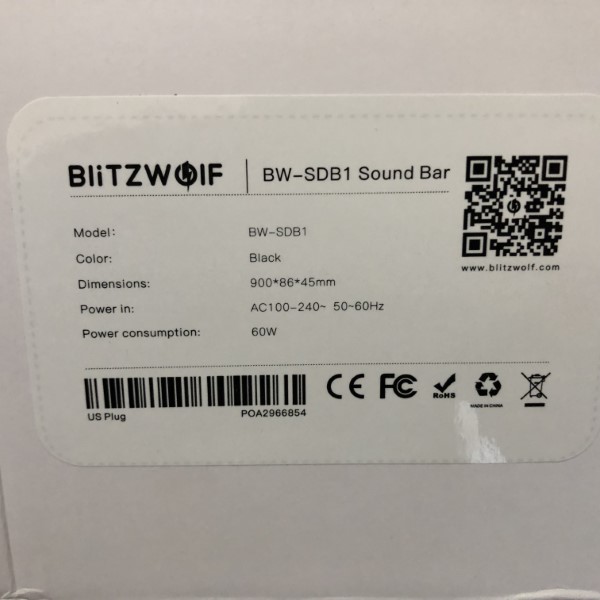
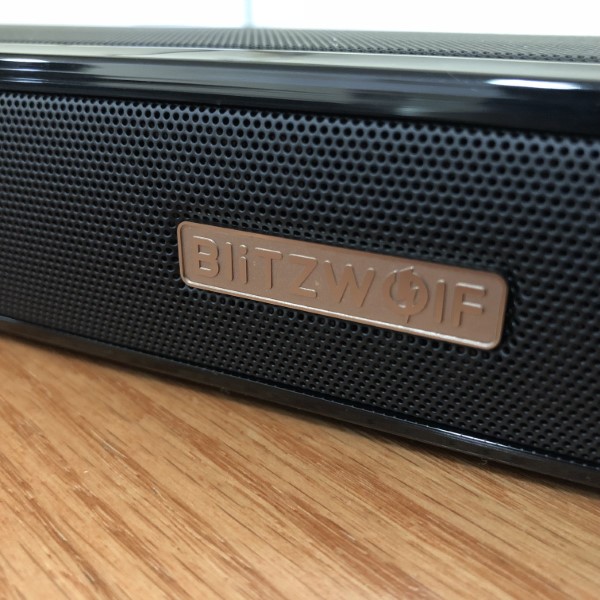
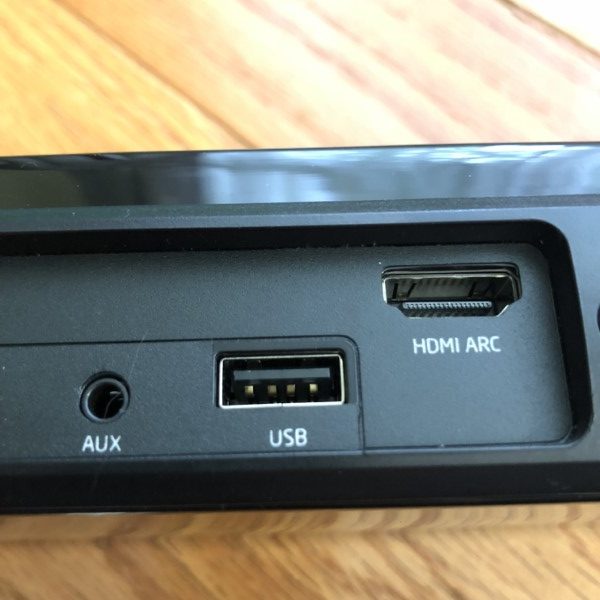
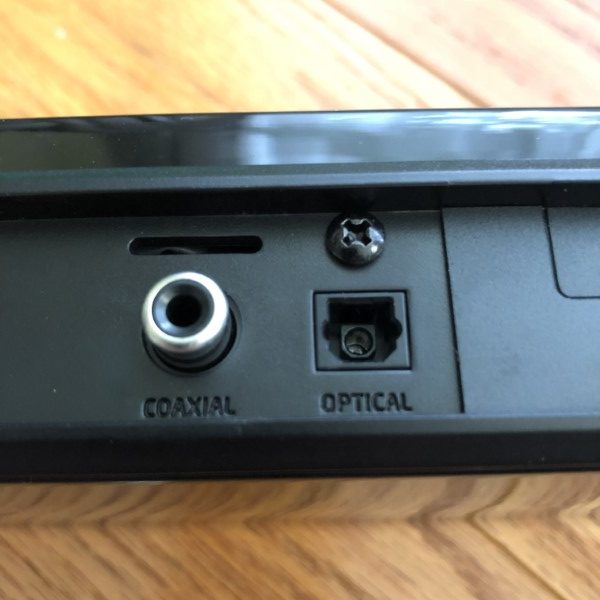
The Blitzwolf BW-SDB1 is a 60 Watt integrated stereo amplifier and speakers housed in an attractive black plastic and metal housing. Inputs include 1/8” stereo jack, optical, coaxial, HDMI and Bluetooth. A wireless remote control is included.

Hardware Specs

  • Material:Aluminum alloy+ PC
  • Dimensions: 35.4*3.4*1.7
  • Weight:3.96lbs.
  • Power Supply:AC 100V – 240V 50 – 60Hz
  • Power Consumption: 60W
  • Audio Input Sensitivity:500mV
  • Frequency Response:40Hz – 20KHz
  • Impedance:8Ω
  • Bluetooth Version:V4.2
  • Transmission Distance:10 – 15m

What’s in the Box?

  • BW-SDB1 speaker
  • Remote control with button cell battery
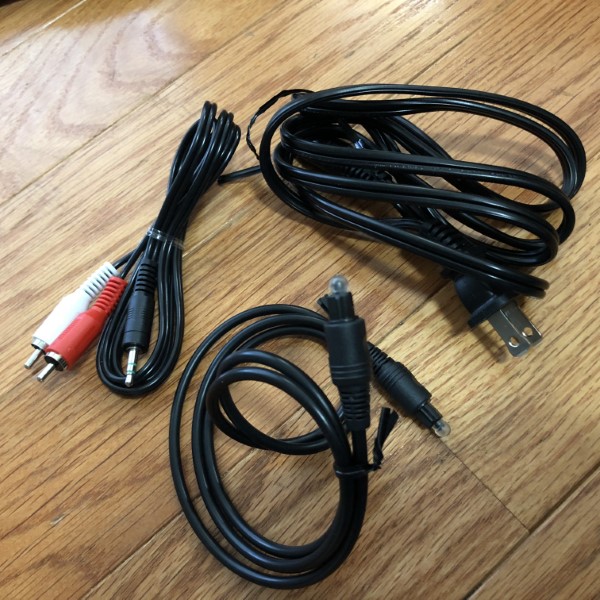
  • Power cord
  • 1/8” stereo to RCA male cord
  • Optical cable
  • Instruction manual

Design and features
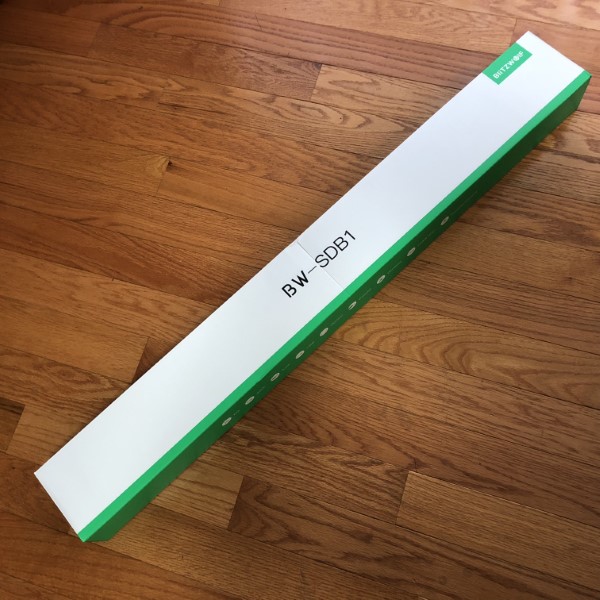
The Blitzwolf BW-SDB1 arrived in a long, slender green and white box. Packaging is good, with foam padding to keep the speaker from thrashing about during transportation
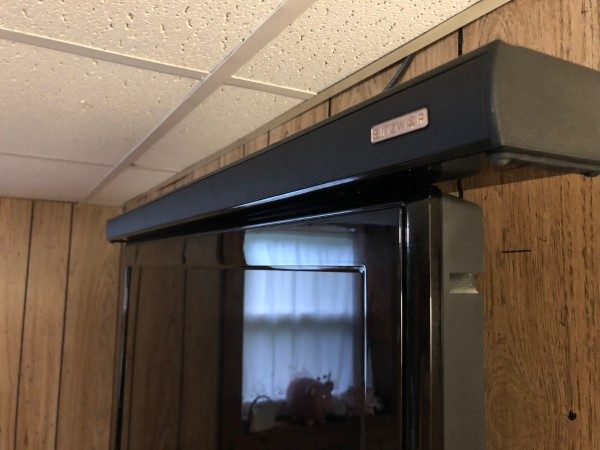
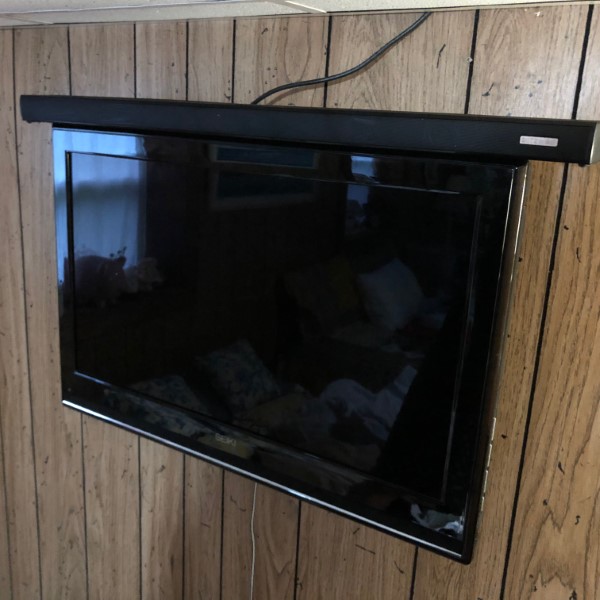
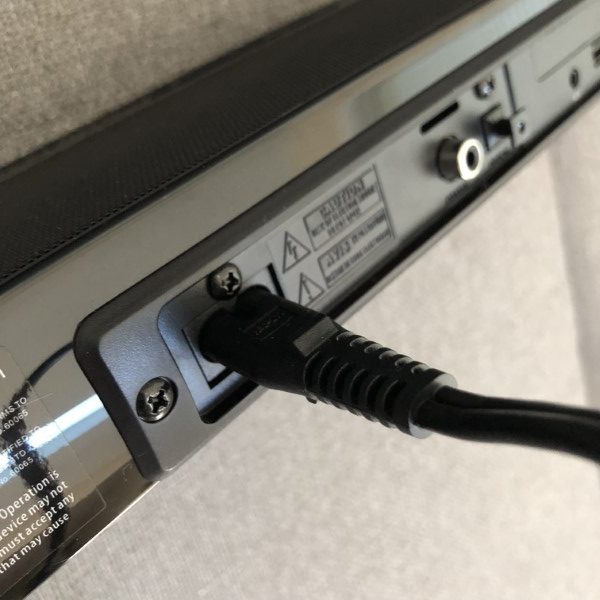
The power supply is integrated into the speaker housing so there is no bulky transformer, however, the AC cord protrudes some distance from the back, so care will need to be exercised to ensure sufficient room. With such a speaker, my primary application would be to install it on top of a wall-mounted television. In my case, there is not enough room to put the speaker on top of my living room TV without purchasing a right-angle power cord, however, my guest room TV is angled away from the wall, so the Blitzwolf soundbar has no trouble finding a home here (as shown above). The audio, optical and HDMI connectors follow suit. Should the speaker bar be placed on a cabinet forward of the television, this would not be an issue.
I powered up the speaker, plugged in my iPhone and selected a short playlist. Drivers in the face and top of the enclosure deliver good quality audio with little distortion. Frequency range is limited predominantly by the size of the speakers, but, to me, sounded better than comparable models. Stereo separation is very good, sounding like the speakers are much further apart than they really are. Bass was fairly good for a unit of this size, particularly when lacking a dedicated subwoofer. Treble was clean and acceptable. Vocal audibility was well balanced and this speaker would do well as an enhancement to TV speakers. I duplicated my tests using the HDMI, Bluetooth, coax, and optical inputs with similar results.
I was able to keep the Bluetooth connected anywhere I went in my home, but your mileage may vary. At the limits of the reception range of about 45’, there was a little dropout, but that is quite typical.

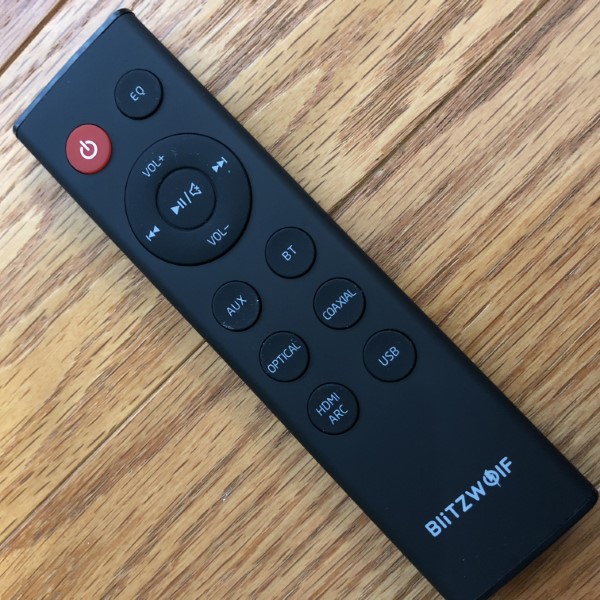
The remote uses a button battery. It’s simple but definitely gets the job done. Equalizer settings are verbally reported as they are cycled.
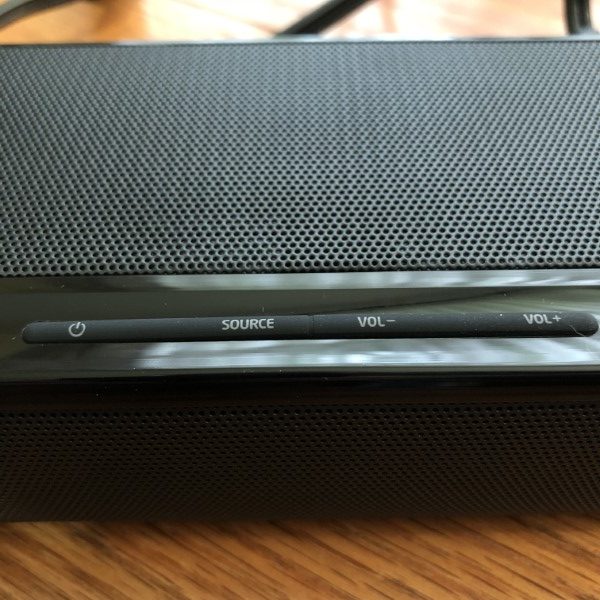
Buttons on the main speaker can also be used to control the settings, input, and volume.
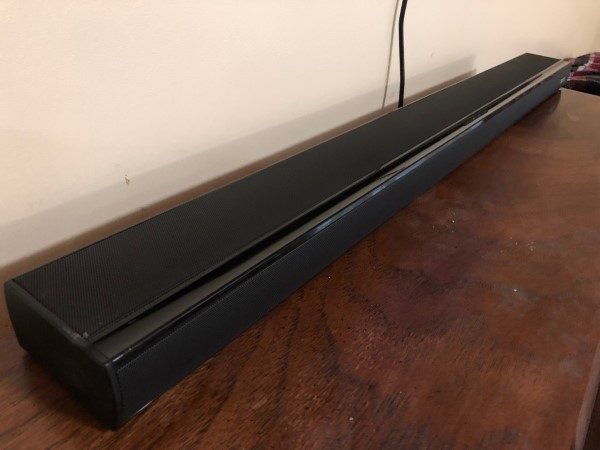
I’ve used several speaker bars, some more, some less expensive than the Blitzwolf BW-SDB1 with wildly differing audio quality. The BW-SDB1 has good sound, good volume, plenty of inputs and remote control and represents a good value.
What I like

  • Metal construction
  • Remote and cords included
  • Not too expensive

What needs to be improved?

  • Cord placement makes it difficult to mount on a wall.

Final thoughts

Blitzwolf’s BW-SDB1 60 Watt soundbar is a solid contender for those wishing to enhance their television sound. It’s not going to rival a full surround sound system for audio quality, but overall I found it to be very good.

Price: $99.99
Where to buy: Amazon
Source: The sample for this review was provided by Blitzwolf.

The post Blitzwolf BW-SDB1 Sound Bar review appeared first on The Gadgeteer.

Filed in categories: Reviews

Tagged: ,

Blitzwolf BW-SDB1 Sound Bar review originally appeared on The Gadgeteer on July 3, 2018 at 1:00 pm.

Note: If you are subscribed to this feed through FeedBurner, please switch to our native feed URL http://the-gadgeteer.com/feed/ in order to ensure continuous delivery.
The ZAGG Messenger Folio adds functionality and versatility to your Apple 10.5-inch iPad Pro


NEWS – So for those of us that are fans of the Apple tablets, purchasing the iPad or iPad Pro tablet is a serious investment. Apart from paying a premium for the device in the configuration that we choose, we also tend to invest quite a bit of money on accessories, including things like a protective case and a functional physical keyboard.

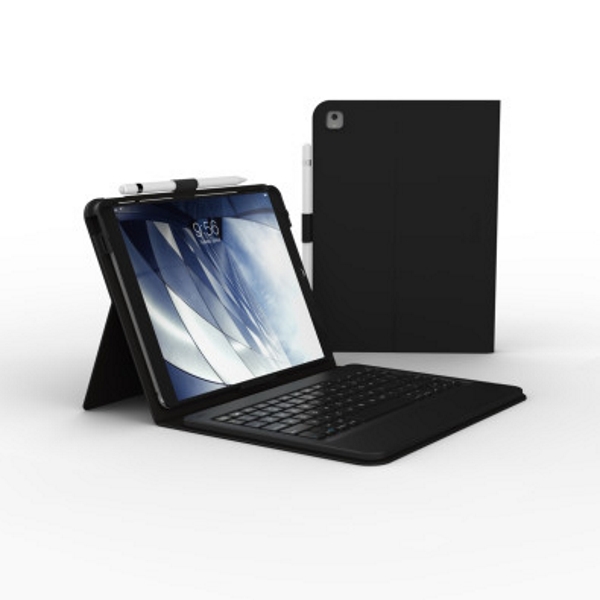
Once again, ZAGG has responded to the needs of their customers, and they have announced the Messenger Folio which is a case and Bluetooth keyboard combination made specifically for the Apple 10.5-inch iPad Pro. This keyboard/case combination is lightweight, and turns the tablet into a portable workstation, much like a laptop. It features a magnetic closure, Bluetooth technology for connectivity, and a built-in battery that lasts up to 3 months between charges. There is also a built-in holder for the Apple Pencil.

You can purchase the ZAGG Messenger Folio is at ZAGG.com and Target locations nationwide for $59.99.

The post The ZAGG Messenger Folio adds functionality and versatility to your Apple 10.5-inch iPad Pro appeared first on The Gadgeteer.

Filed in categories: News

Tagged:

The ZAGG Messenger Folio adds functionality and versatility to your Apple 10.5-inch iPad Pro originally appeared on The Gadgeteer on July 3, 2018 at 12:00 pm.

Note: If you are subscribed to this feed through FeedBurner, please switch to our native feed URL http://the-gadgeteer.com/feed/ in order to ensure continuous delivery.
IOGear Quantum Thunderbolt 3 Docking Station Pro 85 review

What is it?

The Quantum T3 is a desktop docking station for USB-C computers that adds additional ports and functionality all through a single USB-C connection.

Hardware specs

Front connections: 2 USB ports (USB-A 3.1 and USB-C)
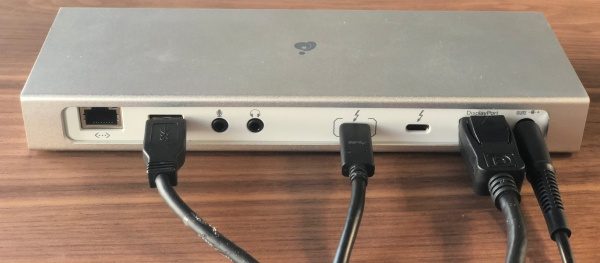
Back connections: Gigabit Ethernet, USB-A 3.1, 3.5mm Audio in, 3.5mm Audio out, 2 USB-C, Displayport and DC power
Dimensions: 22 x 8.1 x 2.5cm
Video capability: DisplayPort 1.2 (up to 4K@60Hz with single video stream), Thunderbolt 3 (USB-C port), up to 5K@60Hz on DP Alt mode with single stream or 4K@60Hz with dual streams

What’s in the box?

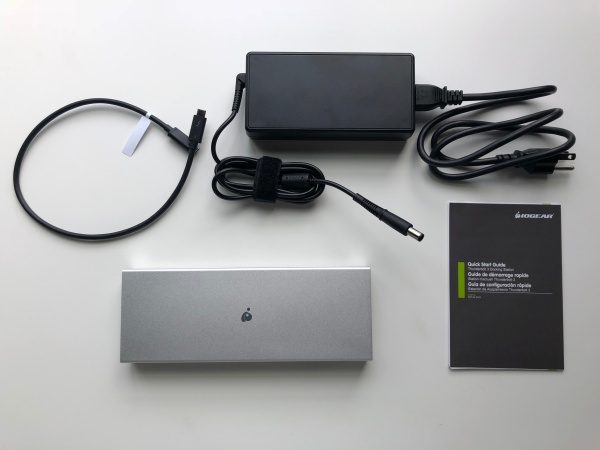
  • Quantum Thunderbolt 3 Docking Station Pro 85
  • Thunderbolt 3 cable
  • AC power adapter
  • Quickstart guide & warranty card

Design and features

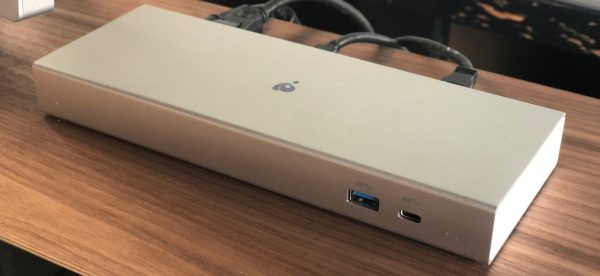
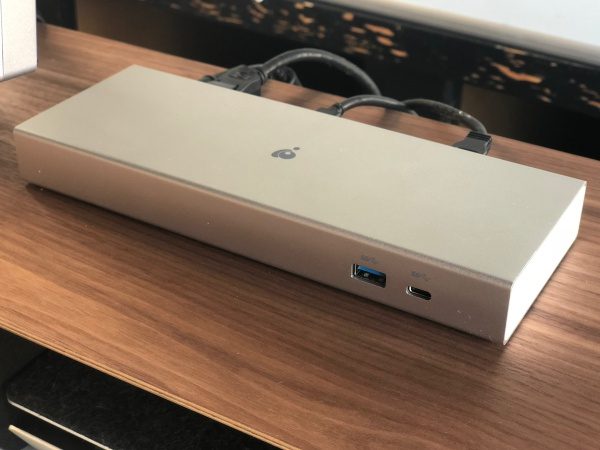
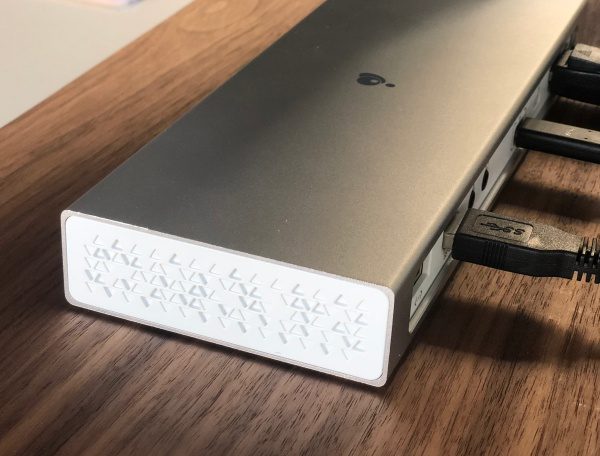
The Quantum 3 is a beautiful piece of equipment that looks at home with current computers of the aluminum variety and provides all kinds of connectivity to your USB-C computer at your workstation. The main body is aluminum with plastic used for the inset back connector panel and the end panels which sport a cool repeating triangular relief pattern.

As you can see in the next photo, there are also connections for gigabit ethernet, USB 3.0, microphone, headphones, USB-C, displayport and power.

On the front of the unit there is a pair of connectors, one for USB-C and one for USB 3.0.

Setup

Connect to Quantum 3 to its power supply and then the included USB-C cable to your computer. It’s important to note that the first one with the [    ] around the port has a higher throughput and 85 power supply for connecting to your computer, supporting the other functions through the hub and keeping your computer charged without a separate power cable.

All that’s left is connecting everything else you plan to use. I have an HP Envy ultrawide monitor that I selected specifically because it had USB-C input. What I found in initial use is that some of the other connections through the monitor like standard USB 3.0 accessories, required me to add another cable to my mac which is what I was trying to avoid in the first place.

With the Quantum 3, I connected a DisplayPort cable to the monitor along with a USB 3.0 cable and that’s it. The office I work in is all wifi, so I haven’t had to try the gigabit ethernet yet. Maybe in the new office starting next week.

Performance

It’s really quite amazing how seamless a product can be when it does exactly what it’s supposed to. It’s not like I forget that it’s there, but at the same time, I don’t have to monkey with it. With the connections described above, I’m able to set my Mac down, connect a single USB-C cable and everything just works and my Mac is charging. The headphone amp that’s connected to the monitor with USB works perfectly. The monitor’s built-in pop-up camera works perfectly (previously required an extra cable to the mac). I can go on, but you get the picture.

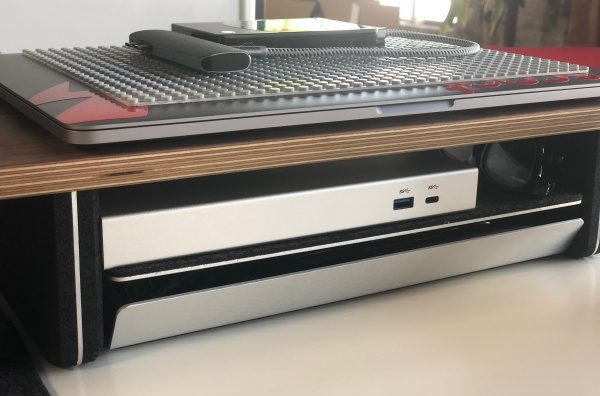
I’ve got the Quantum 3 tucked into a pocket of my desk riser where I have access to the front two ports should I need them and everything else is out of the way.

What I like

  • Simple set-up
  • It just works
  • Single connection to the computer (including charging!)

What needs to be improved

  • The cost is pretty steep (but less so when you factor in the cost of buying a second Mac power adapter)

Final thoughts

The Quantum 3 is a docking station that does exactly what it’s intended to do. It’s not inexpensive but is incredibly well made and will likely outlast a couple of laptops. If the idea of a single connection to your computer gets you excited, this is a great solution. I’m at my desk a lot during the day, but it is generally in fits and starts and that means a lot of plugging and unplugging. The Quantum 3 solved that with style and now the power adapter that came with my Mac can stay in my backpack.

Price: $299.95
Where to buy: Amazon
Source: The sample of this product was provided by IOGear.

The post IOGear Quantum Thunderbolt 3 Docking Station Pro 85 review appeared first on The Gadgeteer.

Filed in categories: Reviews

Tagged:

IOGear Quantum Thunderbolt 3 Docking Station Pro 85 review originally appeared on The Gadgeteer on July 3, 2018 at 11:00 am.

Note: If you are subscribed to this feed through FeedBurner, please switch to our native feed URL http://the-gadgeteer.com/feed/ in order to ensure continuous delivery.
These socks are worn outside your shoes

NEWS – You probably take an umbrella or a hoodie with you when you know it’s supposed to rain right? But how can you protect your favorite pair of sneakers from getting wet or muddy on a rainy day? Check out Rain Socks from ONFAdd of Japan. These disposable “socks” are made of thin black rubber and are designed to fit over your shoes to protect them from the elements. They come in one size fits all for $18.95 each plus $18 shipping and they aren’t reusable. Yikes! I think I’d rather just tie a plastic shopping bag over each of my shoes and call it a day at that crazy price. Or you can head over to Amazon where I found some reusable shoe covers for $11.99. How about you, are you interested in learning more about Rain Socks? Then visit ONFAdd.com

The post These socks are worn outside your shoes appeared first on The Gadgeteer.

Filed in categories: News

Tagged:

These socks are worn outside your shoes originally appeared on The Gadgeteer on July 3, 2018 at 10:00 am.

Note: If you are subscribed to this feed through FeedBurner, please switch to our native feed URL http://the-gadgeteer.com/feed/ in order to ensure continuous delivery.
Leitner LH270 Wireless Office Headset review

REVIEW – I’m a remote worker – and no, that has nothing to do with my emotional attachment to the people in my office.  Because I am remote 90% of the time, I need effective communications tools.  For years I have been looking for the perfect Bluetooth headset to use with the various communications apps I use daily, and to me perfect includes wireless.  Is the Leitner LH270 Wireless Office Headset the answer to my quest or just another stop on the journey?  That’s a great question, and thank you for asking…

What is it?

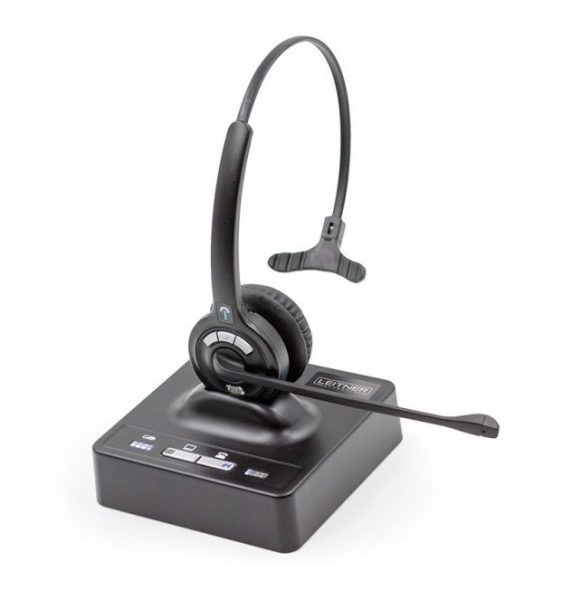
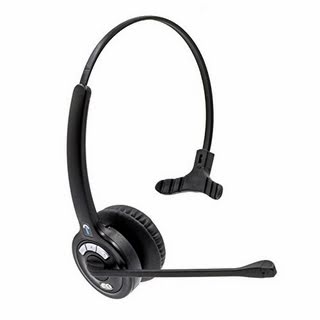
The Leitner LH270 is a professional-grade communications headset designed to work with both a traditional phone line and soft-phone applications like Skype and WebEx.  The LH270 is a monaural headset, meaning it has a single earpiece (the LH275 model is exactly the same except it has 2 earpieces).  The headset itself is wireless, but it connects to a base unit that acts as both the interface to your communications devices/software as well as a charging stand.

There are volume up/down buttons on the headset as well as an indicator light (and button) to let you know when the headset is on or online.  The light and button also act as a call answer/end switch.  The boom mic rotates a full 180 degrees, so you can safely disregard the “left” notation on the earpiece and wear the headset on either the left or right sides.  The middle button between the volume buttons is your mute/unmute switch when in a call.

What’s in the box?

You get the LH270 headset and a replaceable battery pack for the headset (making it relatively easy to get a spare battery and never miss a call).  You also get the base unit/charger, a power cord for the base unit, an RJ-9 phone cord to connect to a handset on a traditional phone, and a type A to mini USB cord to connect to your computer.  That last item is important – the headset is wireless, but the base unit must be connected to your computer and/or your phone.

How it works

Once you have installed the battery in the headset, connected the base unit to power and then charged the headset (normally about 4 hours for a full charge), you are ready to begin.

Plug one end of the USB cable into the base unit and the other end into your computer.  On both my MacBook Pro and Surface Book devices, drivers automatically installed and within minutes I was ready for my first call (or, at least, ready from a hardware perspective).  It has been a while since I had a dedicated landline or VOIP phone, so I made a semi-annual pilgrimage to my office where I have an actual desk and phone.  I try to visit at least twice a year, and this seemed like a way to kill two birds with the single stone.  On my desk phone, I unplugged the handset from the phone base and plugged it into the LH270 base.  Then, using the RJ-9 cord I plugged the LH270 base unit into the phone.

Now I am REALLY ready.

And this is where I found the first quirk.  There is a button on the base unit that determines which device the base is connected to.  By default on power up the base unit selects the phone and not the computer.  So when I received a Skype call I pressed the answer button only to find that the base unit does not switch to the active source automatically.  You will have to get to the base unit, switch to the proper mode and then answer the call.

If you use the LH270 with a regular phone you are going to want to invest in a handset lifter.  Without it (and assuming you are in the proper mode on the base unit), you must be close to the phone in order to lift the handset to answer.  With the handset off the phone base, you can press the answer button on the headset to divert the signal to the headset rather than the phone’s handset.  Oh, and you will also have to hang up the handset when the call is over because – without doing that – you will not get any calls.

WebEx proved to be an interesting quirk.  And note, this is not a problem with the LH270, but rather with the WebEx software on both the Mac and Windows.  About half the time on loading WebEx it would select a different mic rather than the one on the LH270, with the end result being that no one could hear me until I switched the communications device in settings.  I have never had that problem with any other device, but it was consistent with the LH270 over about 14 calls, so if WebEx is the preferred app you might want to check with Cisco about a software update.  Nothing in time to help me, though.

So those are the oddities when answering or ending a call.  As a communications headset, though, the LH270 is close to perfection.  The calls are crystal clear, and people on the call could hear me with the same clarity.  I could move all over the office without any drops in connection or static.  I could get about 30 feet away from my desk without a clear line of sight to the base unit before I had any problems.  That included multiple walls between me and the base.

Did I mention the battery life?  Extraordinary.  I can spend 6+ hours during the day on calls with the LH270 and end the day with over 50% of the battery remaining.

When in the right mode, starting and ending computer-based calls was easy.  Moving around was also easy – if I ever strayed too far, the headset would beep but the call would not drop.  To get back in the conversation, all I had to do was move back within range and the headset automatically reconnected to the call.

What I liked

  • Amazing clarity on calls
  • Outstanding battery life
  • Easy setup
  • Little touches like call retention when out of range

What needs improvement

  • No handset lifter in the box (important if you use a regular phone)
  • No automatic switch between PC and phone mode based on the incoming signal

Final thoughts

If business communications are important to your work, you can’t do much better than this headset.  It is pricey at $288 and I wish it came with a handset lifter, but it also comes with a 5-year warranty out of the box so the clarity you get in your calls today will be with you for a long time to come.  Should Leitner solve the lifter issue along with the active mode issue, I could see this – and the LH275 dual earpiece version – becoming the gold standard for business communications.

Price: $288.28
Where to buy: Amazon
Source: The sample for this review was provided by Leitner.

The post Leitner LH270 Wireless Office Headset review appeared first on The Gadgeteer.

Filed in categories: Reviews

Tagged:

Leitner LH270 Wireless Office Headset review originally appeared on The Gadgeteer on July 3, 2018 at 9:00 am.

Note: If you are subscribed to this feed through FeedBurner, please switch to our native feed URL http://the-gadgeteer.com/feed/ in order to ensure continuous delivery.